Welcome to zettelkasten_tools’s documentation!
Why tools4zettelkasten?
tools4zettelkasten provides tools to setup a digital Zettelkasten System based on simple interlinked markdown files.
A digital zettelkasten can be setup with just some folders and markdown files and a good markdown editor. IMHO special database or cloud based systems are not necessary.
zettelkasten_tools provide some tools to make handling of “markdown zettel files” easy:
helps to keep all files with a consistent naming convention
helps reorganizing the file hierachy
show your zettel notes in a browser as html
creates graphical representation of your Zettelkasten, so that you can visualize your stem of thoughts
What is a Zettelkasten?
A Zettelkasten is a structured collection of notes. The Zettelkasten is a tool to approach complex ideas and concepts. It serves to support and structure one’s thinking about essential topics. Thus the note box can help to formulate and publish own thoughts.
Zettel is the German word for a small piece of paper, and Kasten means box. So a Zettelkasten is a box full of small pieces of paper. Therefore a Zettelkasten is often referred to as a slip box.
The idea of a slip box goes back to Niklas Luhmann (1927-1998) [1]. An exceptionally productive sociologist measured by his publications. Söhnke Ahrens explained Luhmann’s approach in his book “Das Zettelkasten-Prinzip” [2] and contributed significantly to popularizing the concept. The book was translated into English under “How to take smart notes.“ Through this title, one can find numerous explanations of the methodology on the Internet.
How to set up a digital Zettelkasten?
To use the system, you don’t need any special software. Any Editor (e.g. VSCode, Atom, Vim, etc.) capable of editing Markdown can be used.
Every slip (zettel) is a simple markdown file. These markdown files might contain images or mathematical formulas.
Using the Zettelkasten is 95% about how to write notes and how to name them.
Just 5% is about organizing these notes with tools4zettelkasten. Please
refer to my “step by step guide” on how to setup a Zettelkasten.
https://www.mycelium-of-knowledge.org/step-by-step-instructions-for-setup-and-use-of-the-zettelkasten/
How to use tools4zettelkasten?
Start tools4zettelkasten
The Zettelkasten tools provide a set of tools to manipulate the markdown files to significantly improve the handling of a big number of zettel / markdown files. With Zettelkasten you can effortlessly change the hierachy as well as the interlinks of your Zettelkasten.
python -m tools4zettelkasten
Will open a help page with all available commands. You can get further
information about a command (e.g. for the command stage) by typing:
python -m tools4zettelkasten stage --help
The Zettelkasten shows the zettel files as html and provides a simple webeserver to do so. It uses flask, a markdown to html converter and bootstrap to do so in a responsive GUI.
Features of tools4zettelkasten
tools4zettelkasten provides a set of tools to manipulate the markdown files
to significantly improve the handling of a big number of zettel / markdown
files. With Zettelkasten you can effortlessly change the hierachy as well as
the interlinks of your Zettelkasten.
With the stage command you can rename all Zettel / Markdown files in the
input directory, so that they conform to the naming convention. (have a look at
my
https://www.mycelium-of-knowledge.org/step-by-step-instructions-for-setup-and-use-of-the-zettelkasten/
for more information on how and why (!) you should name the files accodring to
the naming convention). The name will be formed from the title in the markdown
file (e.g. title in # title).
With the reorganize command you can change the alphanumeric numbering of
the Zettel / Markdown files in your Zettelkasten directory.
Suppose you have a Zettelkasten with the following files:
...
01_12_Quality_of_notes_eccb21483.md
01_12a_How_to_integrate_notes_into_the_note_box_e0d27e3ad.md
01_12a_1_Integration_of_fleeting_notes_97a19382a.md
01_12a_2_Integration_of_literature_notes_ec83f31a2.md
01_12b_Working_with_alphanumeric_Ordering_en036a6bd.md
01_13_How_to_revisit_notes_a161a7e7c.md
...
The after using the reorganize command, the files will be renamed as
follows:
...
01_12_Quality_of_notes_eccb21483.md
01_13_How_to_integrate_notes_into_the_fleeting_box_e0d27e3ad.md
01_13_1_Integration_of_fleeting_notes_97a19382a.md
01_13_2_Integration_of_literature_notes_ec83f31a2.md
01_14_Working_with_alphanumeric_Ordering_en036a6bd.md
01_15_How_to_revisit_notes_a161a7e7c.md
...
This way you will always have a clean alphanumeric numbering of the Zettel / Markdown files.
How to setup the tools4zettelkasten?
Right now tools4zettelkasten is still in alpha mode. You need to download
or clone the repo. You can start the scripts via the command line:
python -m tools4zettelkasten
You will have to install the missing dependencies via pip. So you may want to use a virtual environment. See https://rreben.github.io/tools4zettelkasten/ for further information.
I am planning to publish tools4zettelkasten as a package on PyPI. So you
can install it via pip.
First of all you have to tell tools4zettelkasten where to find the
directory of your zettelkasten.
You could use the following directory structure: We store the Markdown files in a simple folder with the following directory structure:
├── input/
│   └── images/
└── mycelium/
    └── images/
Any other directory structure is possible, but you need to have the images in
the images/ directory, if you want to use the flask server.
First of all use the show command to show the current configuration:
python -m tools4zettelkasten show
In MacOS you can use the following command to set the environment variables:
export ZETTELKASTEN=/Users/me/Documents/zettelkasten/mycelium/
export ZETTELKASTEN_INPUT=/Users/me/Documents/zettelkasten/input/
Where /Users/me/Documents/zettelkasten/mycelium/ is the directory of your
zettelkasten and /Users/me/Documents/zettelkasten/input/ is the directory
of your input folder.
The License
This project is licensed with the MIT License, the license text is included with the source code. https://github.com/rreben/zettelkasten_tools/blob/master/LICENSE
This is a simple and permissive license approved by the Open Source Initiative https://opensource.org/licenses/MIT
Layout of the development project
The project layout follows a proposal from Martin Heinz [1].
.vscode/ contains a json file that stores some settings for Visual Studio Code
ArbeitMitDemZettelkasten.code-workspace has some specific data for the Workspace in VSCode.
docs/ contains the website with the project documentation on github pages.
You have to change to the gh-pages branch in order to view or change these
files.
docs_source/ contains all the source files of the documentation, to create the docs on gh-pages. I could not put these files in the docs folder, because this would collide with the structure that gh-pages are expecting. In order to use gh-pages, we have to provide an index.html file in the docs directory (together with all the other html files and ressources).
experiments/ is a folder to try new libraries and python recipes. These experiments have a temporary value and are not part of the project.
flask_frontend/ Contains all the templates, CSS files and static content that flask needs to generate the view of the Zettelkasten in the Browser
tests/ contains everything to test the project, especially the python unittests
zettelkasten_tools/ contains the source code of the tools and the backend of the flask
.gitignore holds the configuration which artefacts will NOT be put under version control
LICENSE is the file with the project license (MIT-license)
README.rst is the file that is first shown on the repo on Github.
[1]: Heinz, Martin, „Ultimate Setup for Your Next Python Project“, Martin Heinz Personal Website & Blog. https://martinheinz.dev/blog/14
Setup the Dev Environment
Setup a virtual environment for python
First install virtualenv:
I follow the routes in the flask tutorial https://www.tutorialspoint.com/flask/flask_environment.htm
pip install virtualenv
No go to your project folder and type in
virtualenv venv
This will create a venv folder. Now type in:
source venv/bin/activate
You should now see venv in front of your cli prompt.
If you want to exit from the virtual environment then
type deactivate at the prompt.
Create a separate virtual environment for windows
If you want to use a virtual environment for windows then you can create a separate virtual environment for windows.
Use the command pip install virtualenv.
Now go to your project folder and type in, but
do not use venv but a different fodername
for this separate virtual environment
(especially when working in a dropbox folder).
virtualenv venv_win
This will create a virtual environment that you can use on your windows system. Before you are able to activate the environment you might have to change the policy settings so that you can start the skripts.
Use the following command:
Set-ExecutionPolicy -Scope CurrentUser -ExecutionPolicy RemoteSigned
Use Get-ExecutionPolicy to check the policy settings.
You have to activate the virtual environment by typing
in venv_win/Scripts/activate.ps1. You should now see the modified prompt.
psioniq Extension
Load the psioniq Extension for VSCode and add the following
configuration. To the settings.json in .vscode folder.
{
  "psi-header.config": {
      "license": "MIT",
  "author": "Dr. Rupert Rebentisch"
  },
  "psi-header.templates": [
      {"language": "*",
          "template": [
              "<<filename>>",
              "Copyright (c) <<year>> <<author>>",
              "Licensed under the MIT license"
          ],
          "changeLogCaption": "HISTORY:"
      }
  ],
  "psi-header.lang-config": [
      {"language": "python",
      "begin": "",
      "prefix": "# ",
      "end": ""
      }
  ]
  }
Enable the Debugger
In VS Code there are two debuggers. There is the pdb command line debugger which is accessible via the terminal and the VS-Code own debugger that is integrated in the environment.
You have a special view for running tests and debugging them.
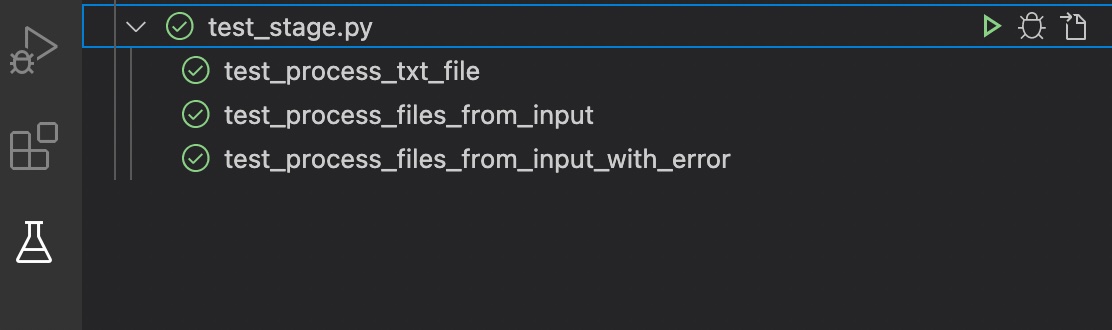
You also can run and start individual tests from the source file.
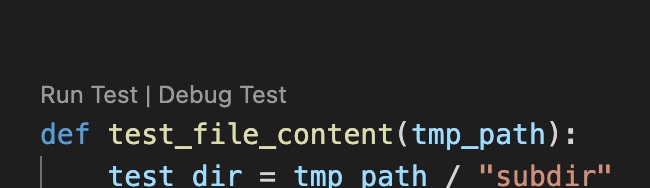
For this to work the setting of the debugger and the test engine have to be in sync.
Start the detection of tests with
Python: Discover Tests from the command palette.
Specify tests as the test directory.
For more information look at the VSCode Documentation
Install the module locally
Go to the project folder where you find the setup.py file.
Activate the virtual environment. To install the module locally type in:
pip install --editable .
With the --editable flag or -e flag
the module will be installed in the virtual environment.
You can uninstall the module with:
pip uninstall -y tools4zettelkasten
You should now be able to start the module
with tools4zettelkasten.
Install twine
pip install twine
Publish on PyPi
We follow the excellent advice in https://www.codementor.io/@arpitbhayani/host-your-python-package-using-github-on-pypi-du107t7ku
Perparation
First we have to create an account on PyPi and on testpipy. Go to https://pypi.python.org and https://testpypi.python.org respectively.
Next get the API tokens from the account.
We store the user names and password in a ~/.pypirc
file in our home directory (not the project directory).
The file has the following format:
[distutils]
index-servers =
    pypi
    testpypi
    testpypi

[pypi]
username:<username>
password:<password>

[testpypi]
username:<username>
password:<password>

[testpypi]
username = __token__
password = pypi-AgENdG...some...token..SlYKYg
The file must not contain a repository entry. Because then twine will not default to the pypi server but will return a deprecated error. See https://packaging.python.org/guides/migrating-to-pypi-org/ for details.
Use the following command to register your package
and to check your settings in setup.py and setup.cfg:
python setup.py register -r pypitest
Prepare the package and publish on GitHub
Change the version number in
tools4zettel/__init__.pyTest tools4zettelkasten with all pytest testsuites.
Update the documentation in the gh-pages branch.
Commit everything an push to master.
Use the “Create a new release” function in the github UI.
Take version number as the release tag on the github UI.
You will get a link to the assets (tar.gz) and (.zip) file.
Make a release package
Right now we have to edit the release number also in
setup.py.Use
pip install --editable .to install the package locally. This is just a test. Useuninstallto remove the package.Use
python -m buildto build the package. You will now have a tar.gz file and a .whl file in thedist/directory.We use
python -m twine upload --repository testpypi dist/*to upload the package to testpypi.Create a new fresh virtualenv and install the package via
python3 -m pip
install --extra-index-url https://pypi.org/simple/ --index-url
https://test.pypi.org/simple/  tools4zettelkasten
. Dabei ist der Parameter--extra-index-urlnotwendig, damit auch Dependencies installiert werden können, die nur auf PyPi nicht jedoch auf testpipy verfügbar sind.Run the tests with
python -m tools4zettelkasten. Try the commands show, analyse and start.We use
python -m twine upload --repository pypi dist/*to upload the package to pypi.
Generate the docs
Sphix is used to generate the documentation.
I use the VSCode extension `Python Docstring Generator` to
generate the code from the docstrings.
In the settings.json file in .vscode/
add "autoDocstring.docstringFormat": "sphinx".
The napoleon sphinx extension is used to enable google-styled docstrings for sphinx.
pip install sphinxcontrib-napoleon
And add the sphinxcontrib-napoleon extension to the
sphinx extensions in conf.py.
Create and edit the source files for the docs
To generate the docs navigate to the docs_source folder
Edit the rst files in the master branch as needed
You might want to edit the release number in the
VERSIONfile of the python package.Use
make htmlto generate the documentationCheck the generated documentation by openening
docs/index.htmlin a browserUse
make clearto remove the generated html documentationComit and push the doc source files.
Publish the documentation
I use Github pages to host the documentation. The configuration can be done in the projects / repo settings under pages.
Github pages expects the html files in the docs directory,
with an index.html file as root. The Github pages are drawn
from a special gh-pages branch (so there is now interference
with day to day.
There should be a .nojkyll file in the docs
folder in order to stop the templating engine of Github pages
to modify the html files. The .nojkyll is an empty file,
just for signalling purposes, it will not be removed by make clear
The Makefile first creates the documentation in the build folder
via sphinx (target html). Then the html documentation is
copied to the docs folder. This step is necessary, as sphinx
won’t create an index.html file in the root directory of the build
folder, but in a html subfolder instead.
There is an additional target clear in the
Makefile, that will delete all files (except the .nojekyll file) from
the docs directory.
We will also delete all auto-generated files via the clear target.
The autogeneration of the modules.rst file and
a file for each module is done via the sphinx-apidoc command which is
configured in the Makefile.
Now switch to the gh-pages branch with
git checkout gh-pagesrun
Make cleanand aMake Clearagain to wipe out all generated docs in this branchUse
git merge masterto fetch all the changes from the masterGenerate the docs and copy it to the docs folder with
make htmlCommit the generated files to the gh-pages branch
Push gh-pages to the remote repo on Github
Go back to the master branch wit
git checkout masterCheck the Github pages.
Bug Reports and Feature Requests
If you find a bug or you want to request a feature go to https://github.com/rreben/zettelkasten_tools/issues and create an issue.
tools4zettelkasten
- tools4zettelkasten package
- Submodules
- tools4zettelkasten.analyse module
- tools4zettelkasten.app module
- tools4zettelkasten.cli module
- tools4zettelkasten.flask_views module
- tools4zettelkasten.handle_filenames module
- tools4zettelkasten.note module
- tools4zettelkasten.persistency module
- tools4zettelkasten.reorganize module
- tools4zettelkasten.settings module
- tools4zettelkasten.stage module
- Module contents